
Upload Your File
CSV2GEO supports multiple ways to input your address data.
Supported File Formats
- CSV (.csv) - Comma-separated values
- Excel (.xlsx, .xls) - Microsoft Excel files
File Requirements
- Maximum file size: 50MB
- Maximum rows: Depends on your plan
- First row can be headers (recommended)
How to Upload
Option 1: Drag and Drop
Simply drag your file from your computer and drop it onto the upload area.
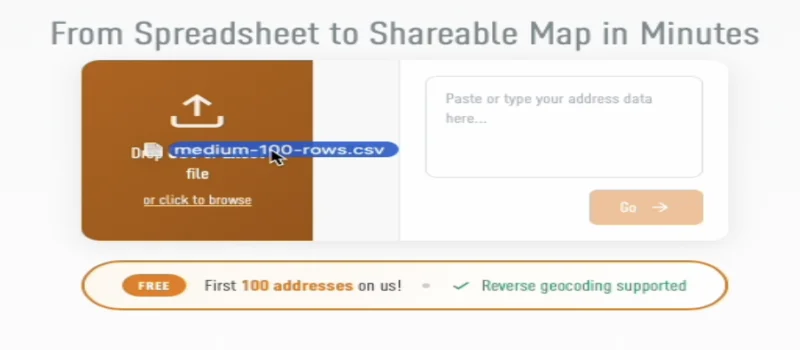
Option 2: Click to Browse
Click on the upload area to open a file browser and select your file.
Option 3: Paste Data
For quick tests, you can paste address data directly into the text area:
Name,Address
John Doe,123 Main St, New York, NY 10001
Jane Smith,456 Oak Ave, Los Angeles, CA 90001
File Structure Tips
Best Practices
- Include a header row with column names
- Keep addresses consistent (same format throughout)
- Include country for international addresses
- Remove special characters if possible
Example CSV Structure
csv
name,street,city,state,zip,country
John Doe,123 Main St,New York,NY,10001,USA
Jane Smith,456 Oak Ave,Los Angeles,CA,90001,USA
Bob Wilson,789 Pine Rd,Chicago,IL,60601,USA
Single Column Address
You can also have the entire address in one column:
csv
name,full_address
John Doe,"123 Main St, New York, NY 10001, USA"
Jane Smith,"456 Oak Ave, Los Angeles, CA 90001, USA"
After Upload
Once your file is uploaded, you'll see:
- A preview of your data (first 10 rows)
- Column mapping dropdowns
- Geocoding mode selection (forward or reverse)
Continue to Column Mapping to learn how to map your columns.