
Column Mapping
After uploading your file, you need to tell CSV2GEO which columns contain your address data.
Address Components
For forward geocoding (address → coordinates), map these fields:
| Field | Description | Example |
|---|---|---|
| Street Number | House/building number | 123 |
| Street | Street name | Main Street |
| City | City or town | New York |
| State | State/province/region | NY |
| Zip | Postal code | 10001 |
| Country | Country name or code | USA |
INFO
You don't need to fill all fields. At minimum, provide enough information to identify the location (e.g., full street address + city).
How to Map Columns
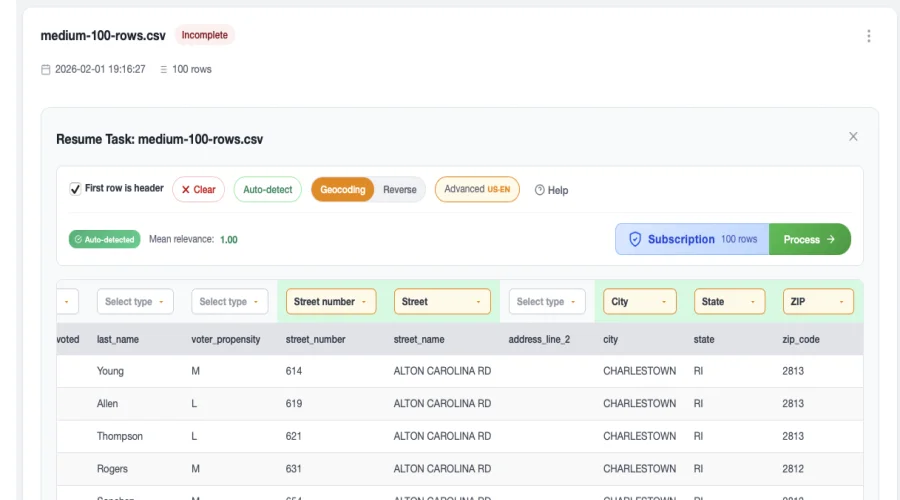
- Look at the column headers in the preview table
- Click the dropdown for each address component
- Select the column that contains that data
Auto-Detection
CSV2GEO automatically tries to detect your columns based on header names. Common headers like "address", "city", "state", "zip" are automatically recognized.
Single vs Multiple Columns
Multiple Columns (Recommended)
If your address is split across columns:
| street | city | state | zip |
|---|---|---|---|
| 123 Main St | New York | NY | 10001 |
Map each column to its corresponding field.
Single Column
If your entire address is in one column:
| full_address |
|---|
| 123 Main St, New York, NY 10001 |
Select that column for the Street field and leave others empty.
Reverse Geocoding
For reverse geocoding (coordinates → address), map these fields:
| Field | Description | Example |
|---|---|---|
| Latitude | Latitude coordinate | 40.7128 |
| Longitude | Longitude coordinate | -74.0060 |
Tips for Better Results
Improve Accuracy
- Include country for international addresses
- Use standardized abbreviations (NY, CA, TX)
- Avoid typos in city and street names
- Include zip/postal codes when available
Next Steps
- Download Results - Get your geocoded data
- Batch Geocoding - Learn more about the geocoding process